Assignees can view their assigned corrective actions under the "Corrective Actions" tab in the CAM module. To complete a corrective action, assignees will need to select one of the listed corrective actions. From there, the user will be navigated to the Inspection Details page of that given inspection. By default, the "Corrective Action Details" page will pop up. The assignee can then view details and designate the corrective action as "Fixed" or "Unnecessary", followed by writing a short description in the text box below it. By then clicking the "Complete" button, the corrective action will be completed and the status will be updated automatically.
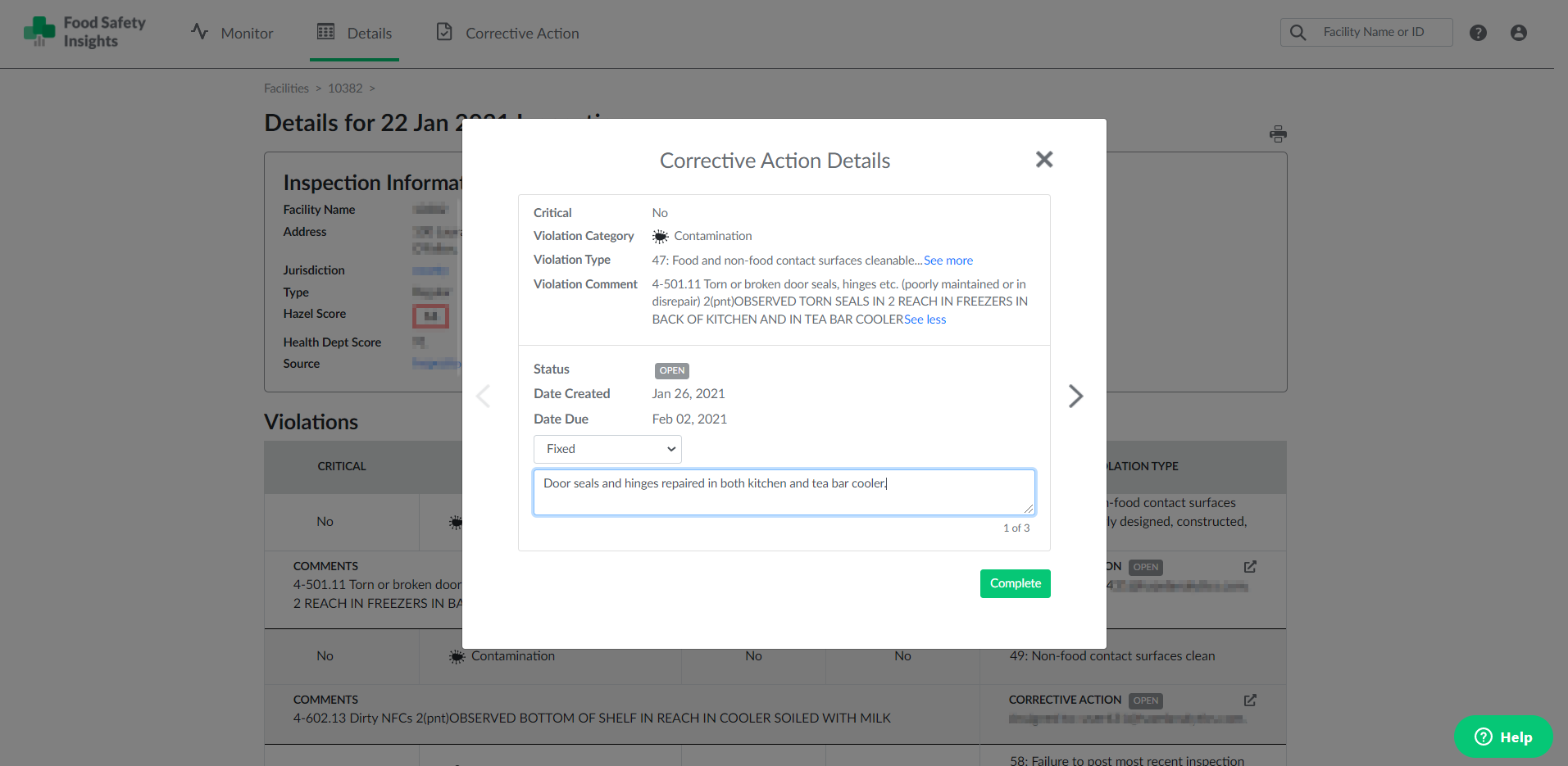
Alternatively, assignees can also open the "Corrective Action Details" pop-up from the Inspection Details page of that given inspection by clicking the "Expand" icon under the "Corrective Action" section located to the right of each individual violation.
Here is video tutorial: