A corrective action can be created through either a manual or an automated process.
Manual Process
To manually create a corrective action, navigate to the violation table on the Inspection Details page for the inspection. Click the "Expand" icon in the "Corrective Action" row (see Figure 1) and enter the assignee and due date to create the corrective action (see Figure 2).
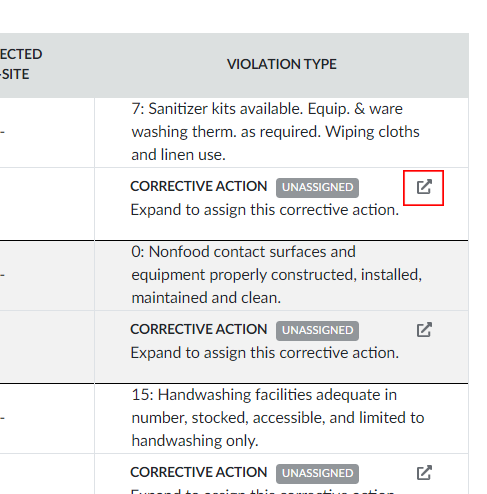
Figure 1: The "Corrective Action" row in the Inspection Details violation table.
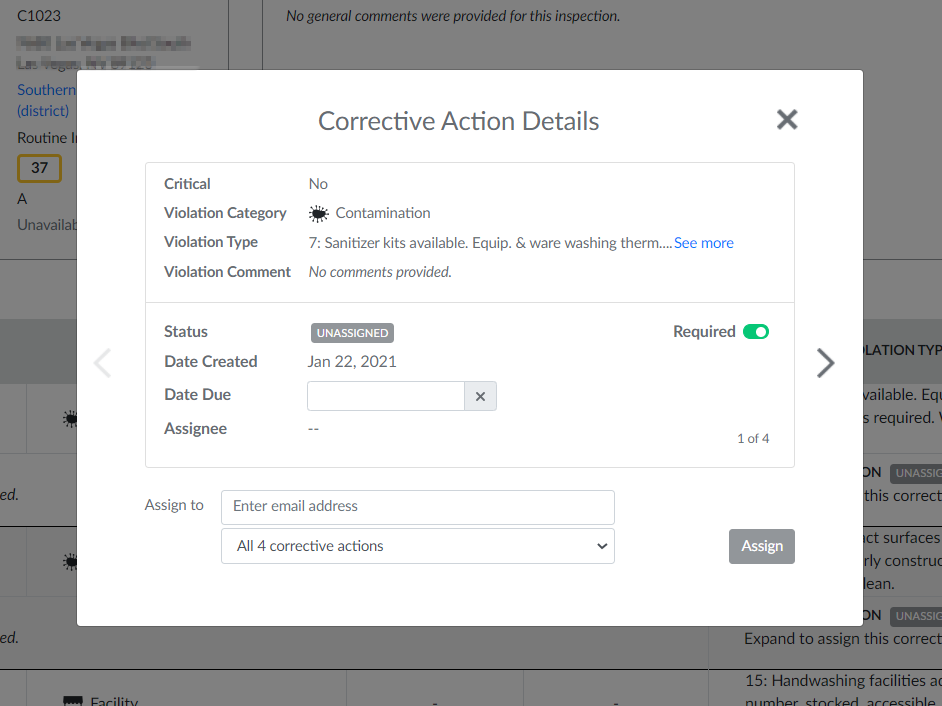
Figure 2: The corrective action pop-up which allows the user to assign and establish a due date for the corrective action.
Automated Process
Corrective actions can be automatically created with triggers. A trigger determines a multitude of things, including when a corrective action should be created based on the inspection and inspection attributes (e.g., number of critical violations), who should be assigned to the corrective action, and how many days the assignee has to complete the corrective action. To set up triggers, navigate to the "Triggers" sub-tab in the CAM module. Learn more about triggers here.