The first step to configuring Hierarchy Based Access Control (HBAC) is to setup custom hierarchies. If you already have custom hierarchies setup, you can skip to the article on configuring access control.
Currently, access control can only be configured on a single hierarchy. You may have multiple hierarchies setup, but only one can be used to configure access control. You may switch which hierarchy is used for access control at any time.
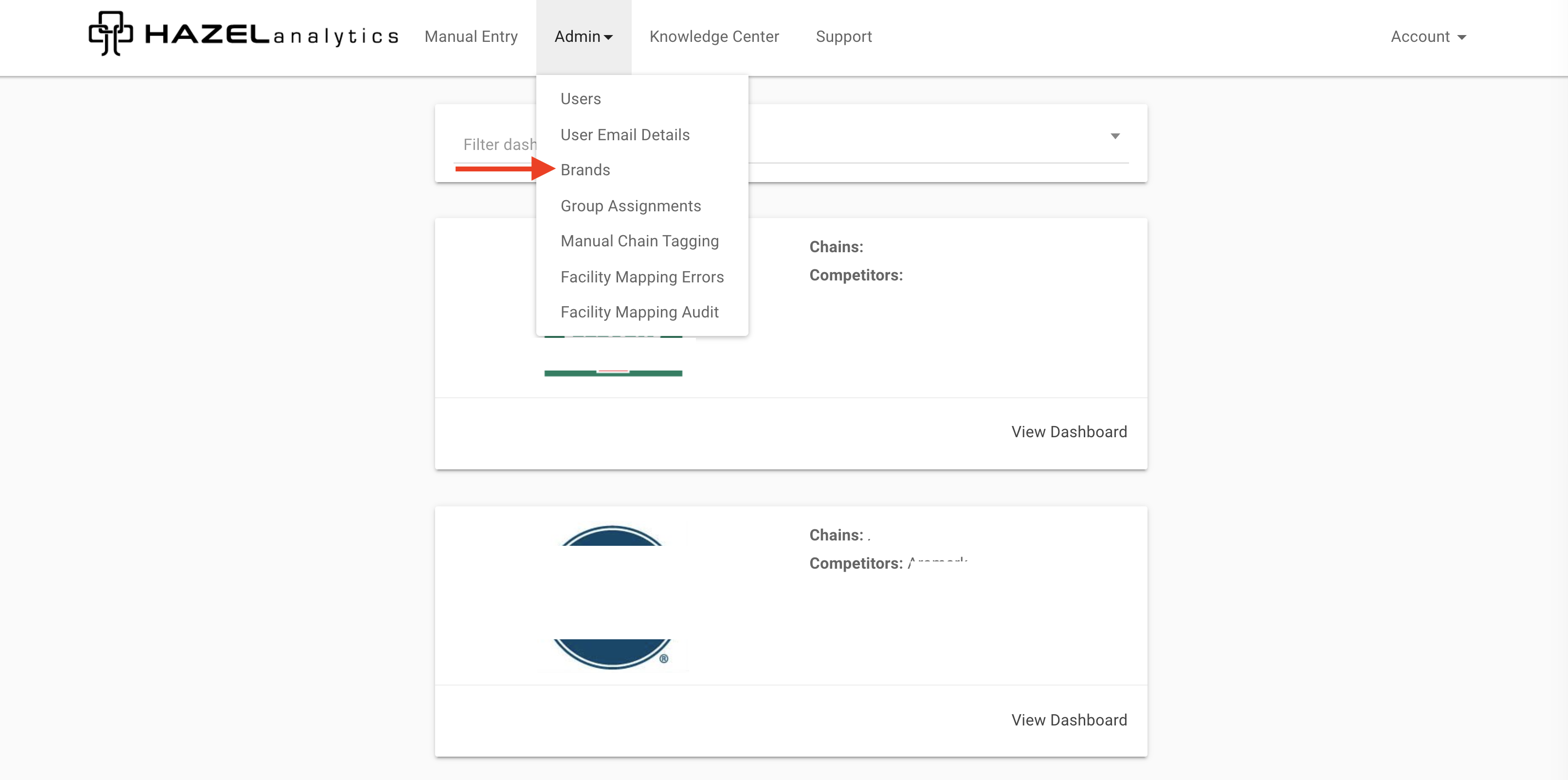
First select the "Brands" option from the Admin dropdown
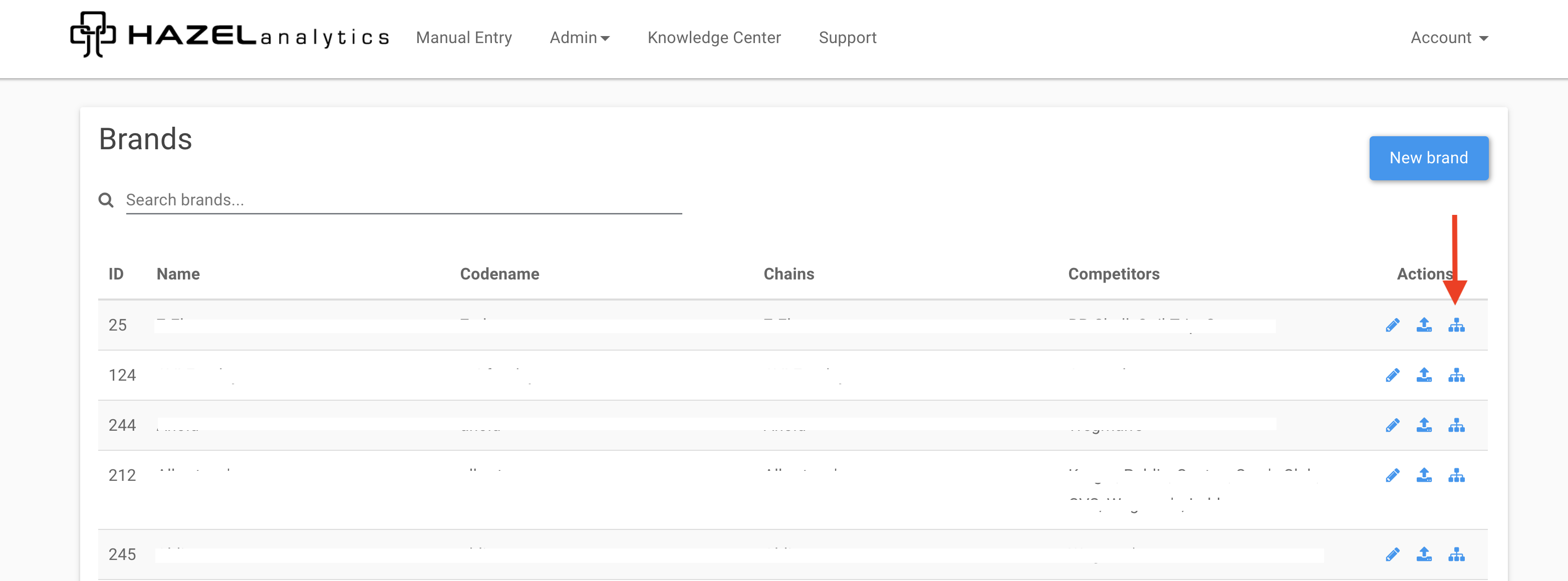
Next, select the "Hierarchies" icon next to the brand to navigate to the access control configuration page.
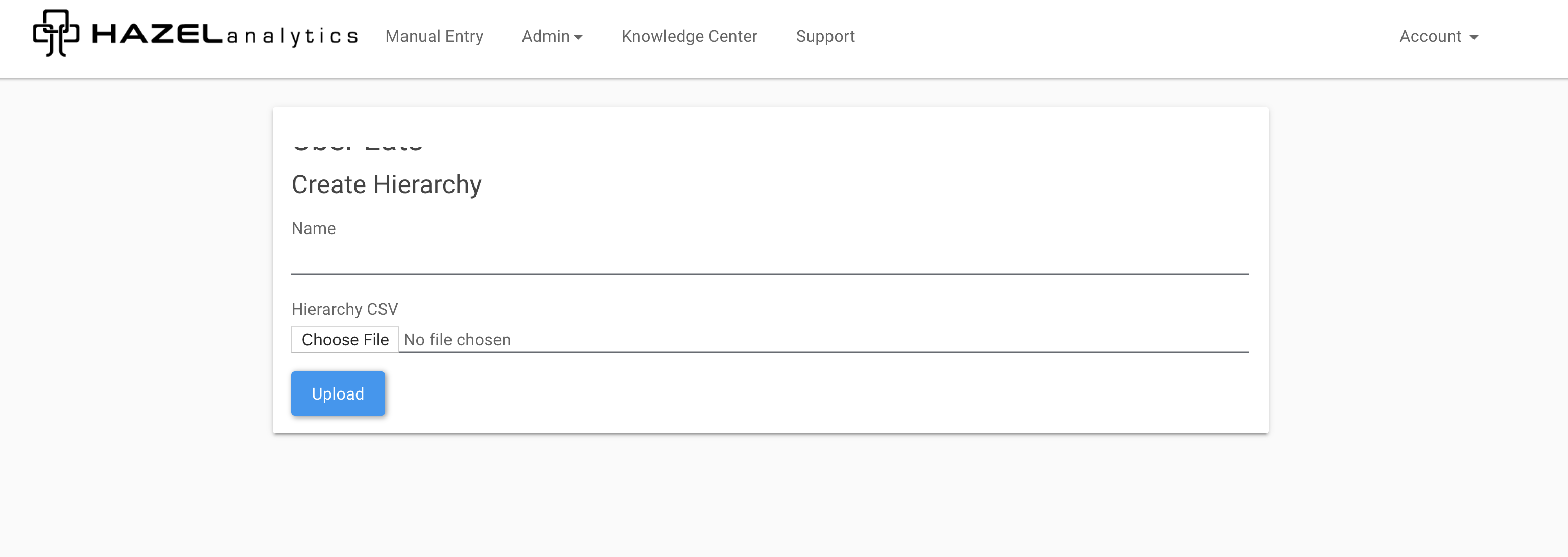
Select the "New Hierarchy" button in the top right to upload a new hierarchy file. Name the hierarchy and upload the CSV. If you need assistance with the file format, please reach out to support@hazelanalytics.com.
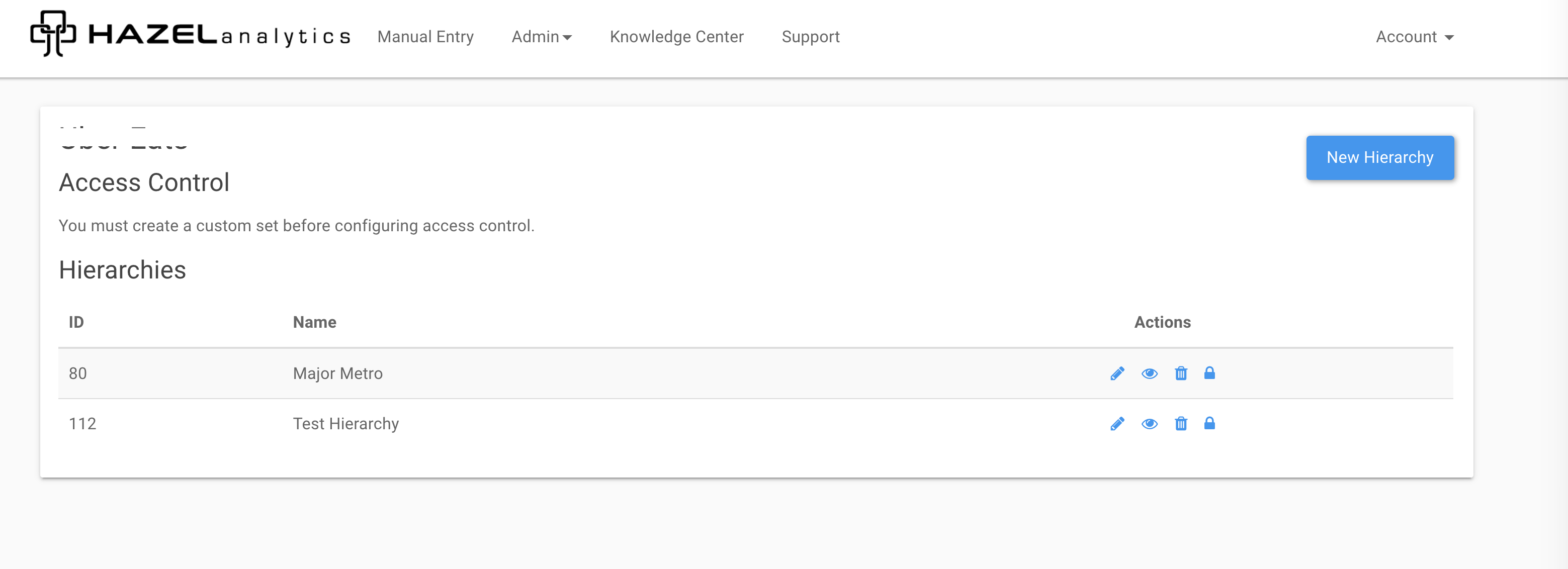
For each hierarchy you can select edit, view, delete, or configure access control in the "Actions" column.